You can access the login page to the IQ Mobile Self-Service Portal from the link below:
Important note
If this is your first time using the IQ Mobile Self-Service Portal, then you will need to make a new account. This site uses separate accounts to our online shop, and so if you try to login with your shop details then it will not work.
Signing Up
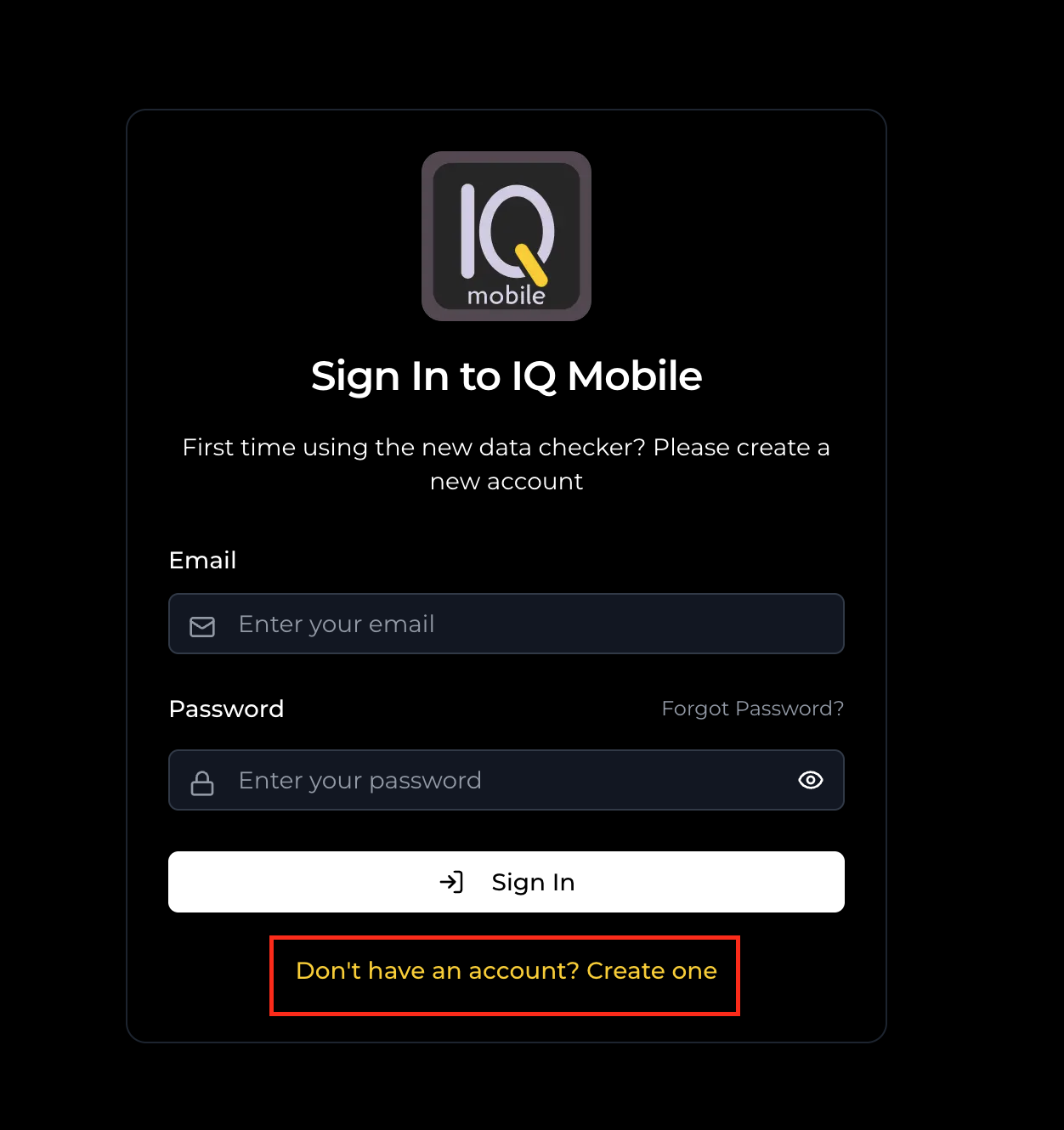
When loading up the portal, press the 'Don't have an account? Create one' button at the bottom of the page:
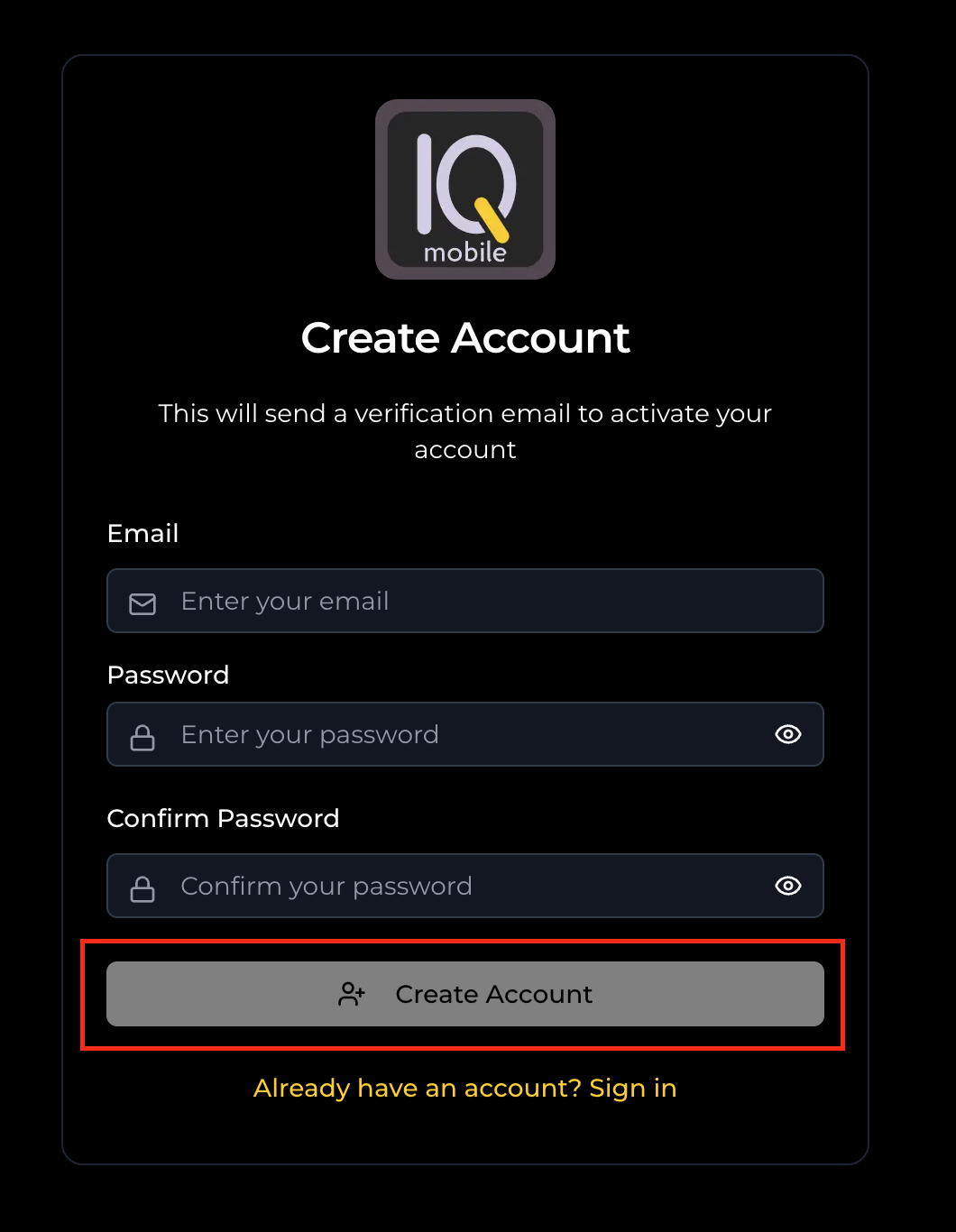
Enter the email you'd like to make the account with (we recommend using the same email you used to order your SIMs) and create a password. Enter that password again to confirm, then press 'Create Account':
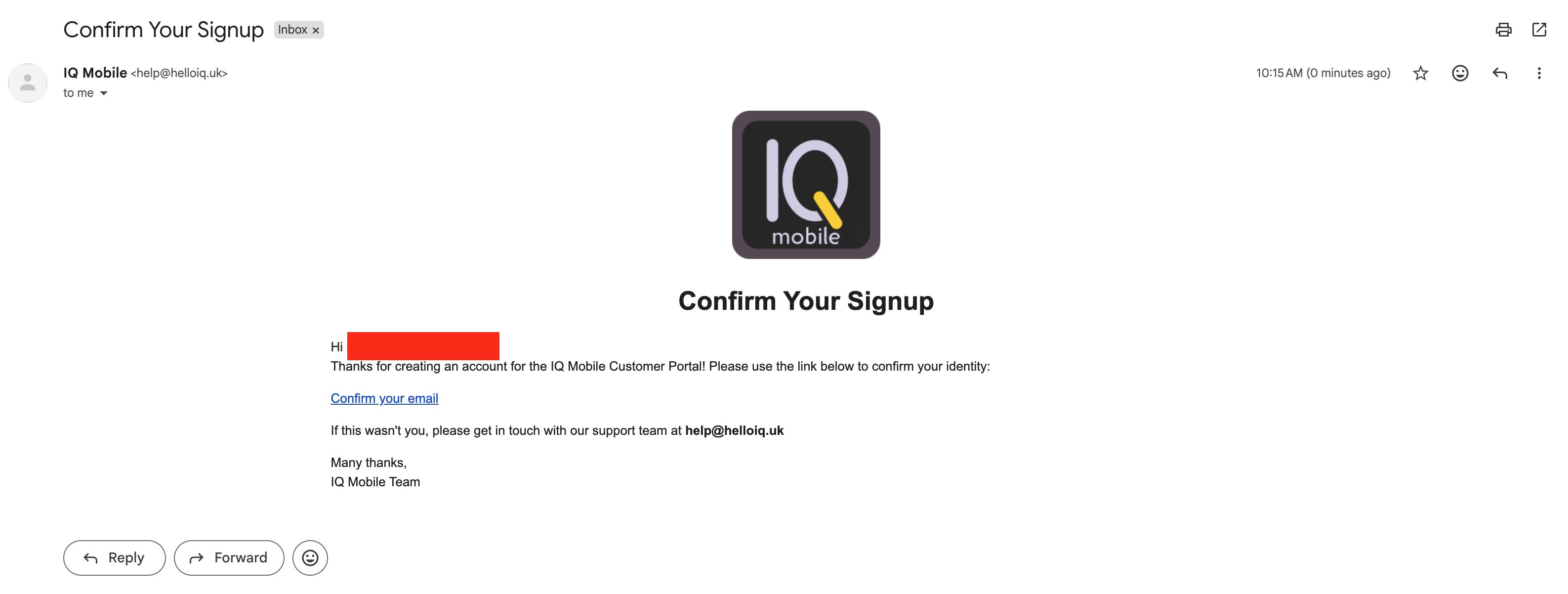
A confirmation email will be sent by help@helloiq.uk to your email address - click the 'Confirm your email' button to finalise the account, and a new tab will open with your dashboard:
Signing In
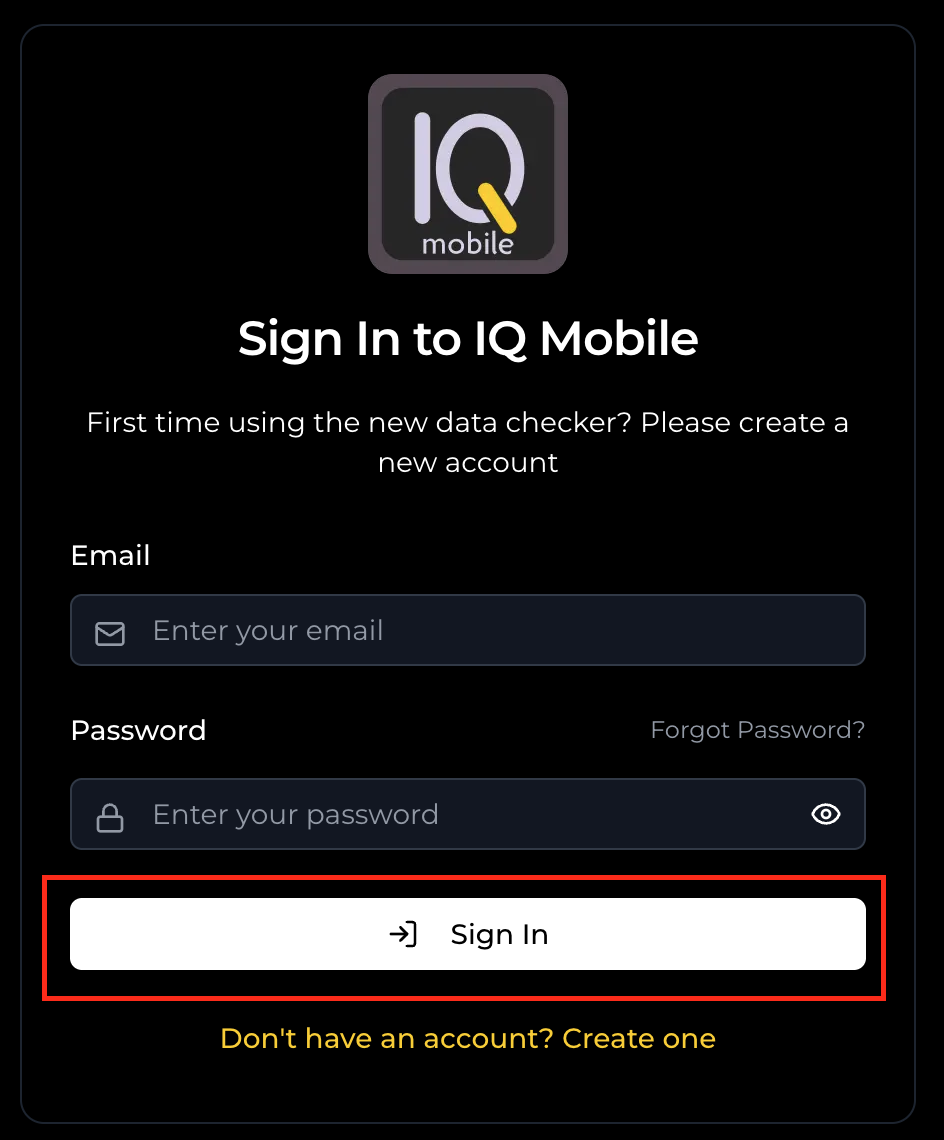
When loading up the portal, simply enter your email and password for your existing IQ Mobile Self-Service Portal and press 'Sign In':
Forgot Password
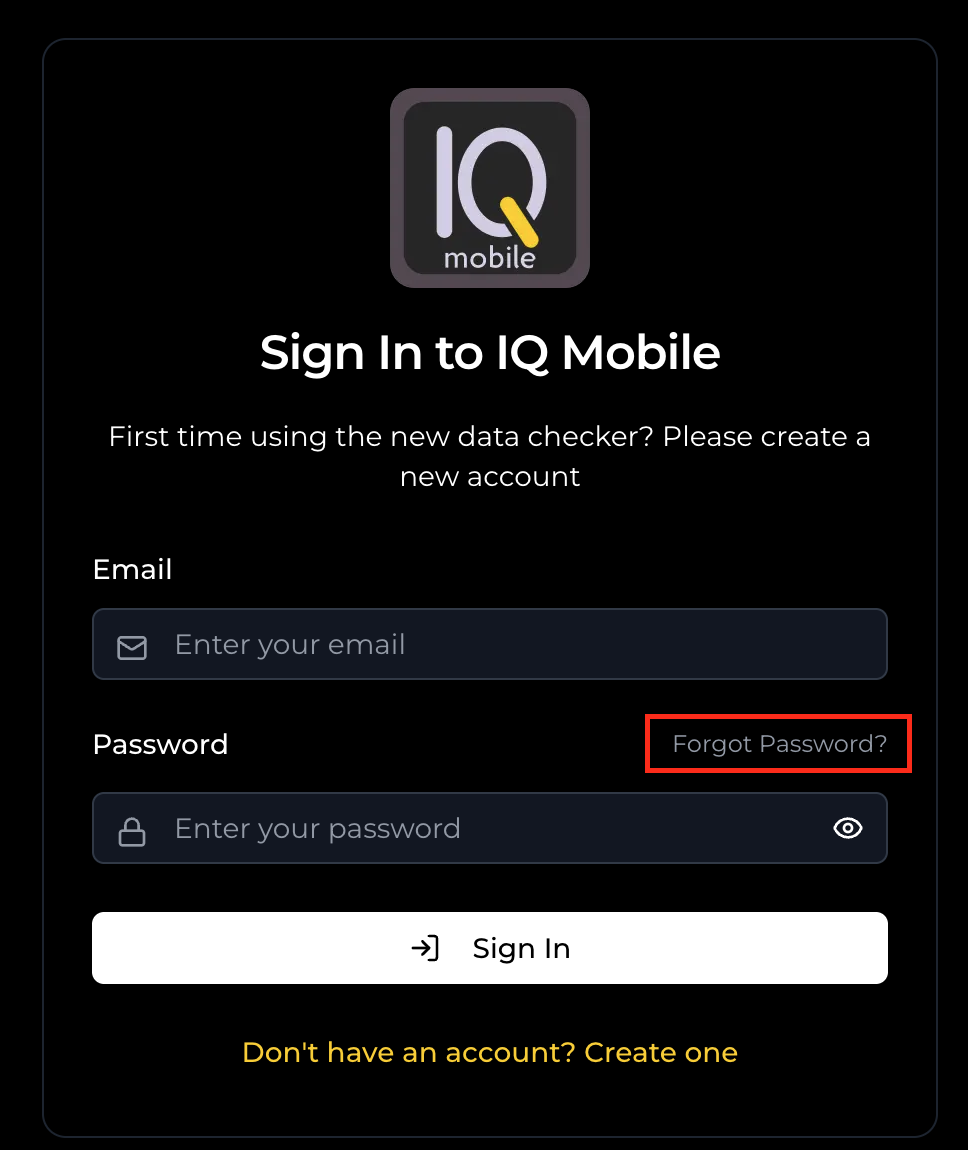
If you're struggling to sign in and would like to reset your password, load up the portal and select 'Forgot Password?':
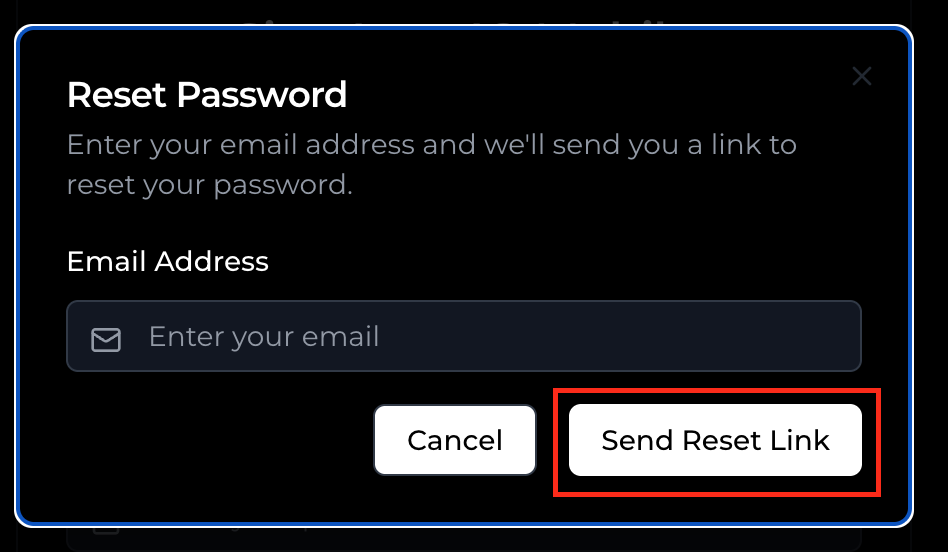
In the pop-up that appears, enter the email of the account you want to reset the password of, then click 'Send Reset Link':
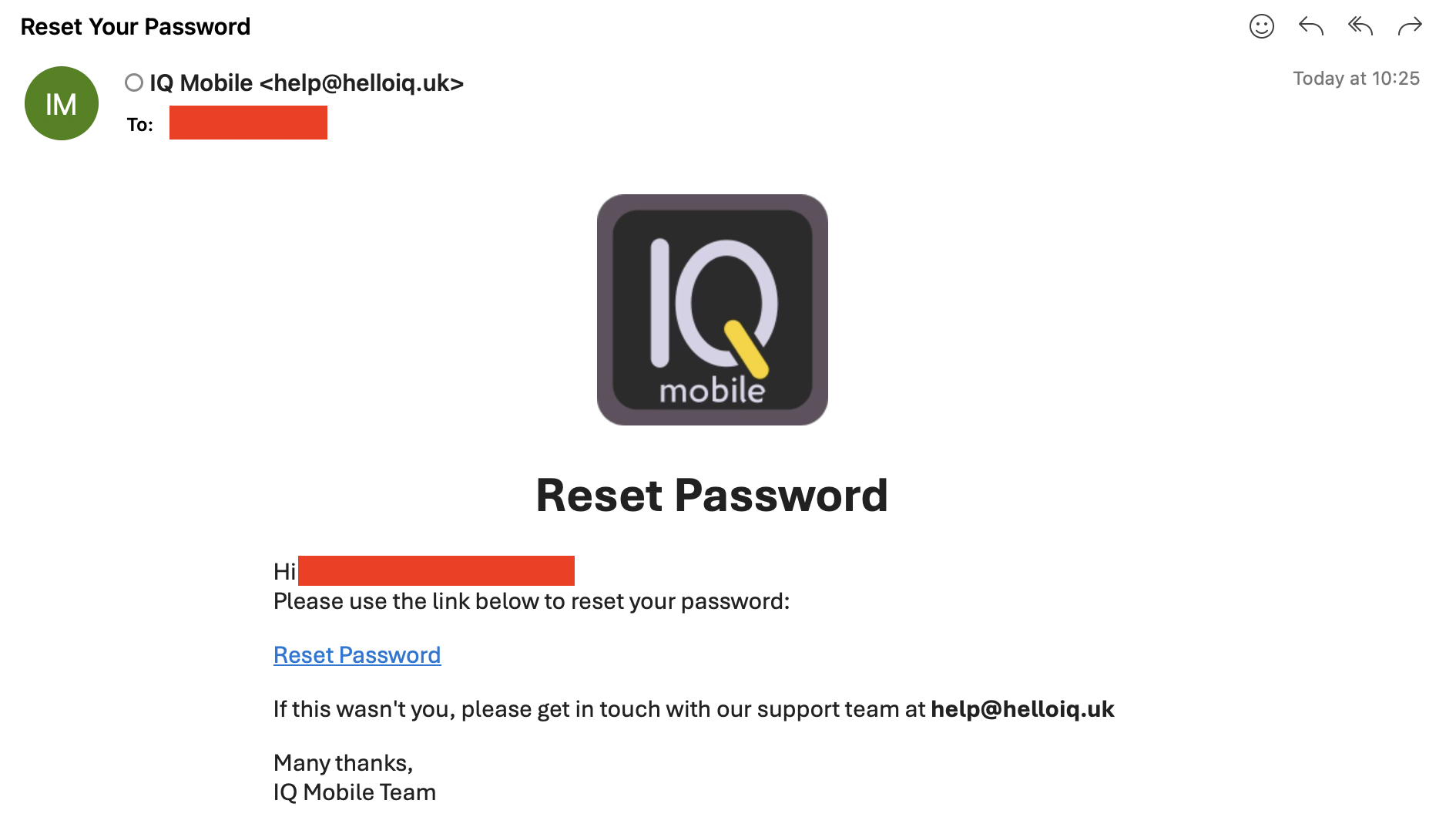
In your inbox, you should receive an email from help@helloiq.uk - click the 'Reset Password' link in the email:
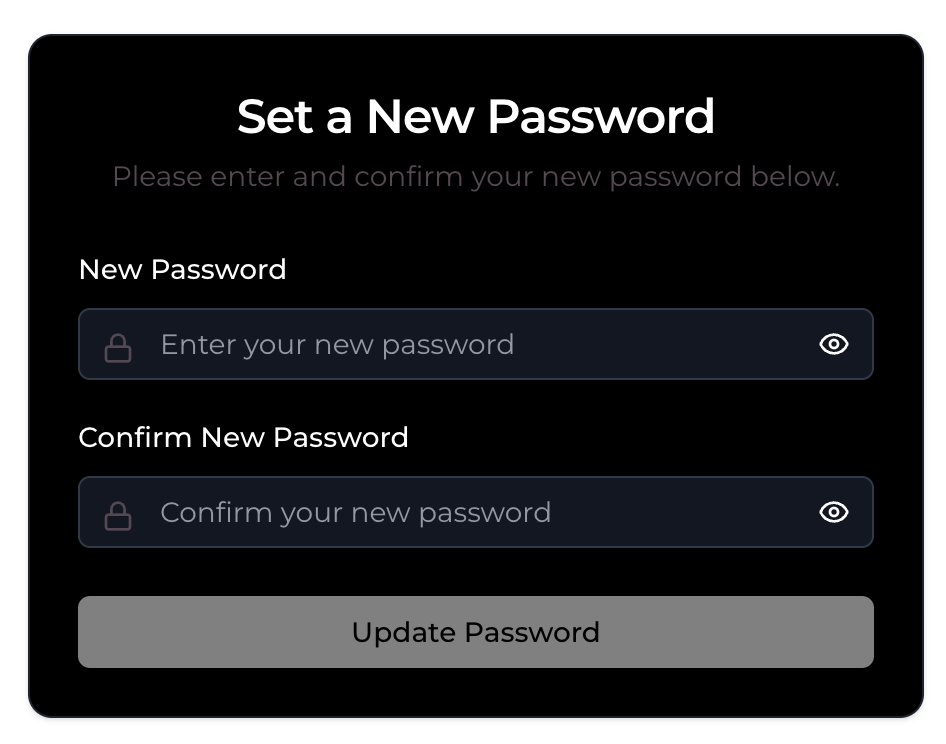
This will take you to a form to update your password - enter the new password you'd like, and enter it again to confirm. Press 'Update Password' to finalise the change, and this should take you back to the login page: